About this product
RCWriter — Your AI content writer that works while you do other things
Keeping a website active takes consistent work. You need fresh topics, useful articles, the right brand voice, and a publishing schedule you can maintain. When you manage several websites or client accounts, those recurring tasks can quickly fill your week.
RCWriter helps you build a more consistent content workflow without handling every article from start to finish yourself.
It is a Windows desktop application that writes articles using your chosen AI provider, follows the instructions you give it, and can publish finished content directly to your website. You decide what each writer should know, how the content should sound, and when the work should happen.
RCWriter runs those tasks in the background while your computer is on—giving you more time for your clients, your business, and the work that needs your attention.
Create a dedicated writer for every website or client
Different websites need different content. A travel blog should not sound like a software company, and one client’s brand rules should not carry over into another client’s articles.
RCWriter lets you create reusable writers for individual websites, clients, topics, or publications. Each writer keeps its own settings, so you can establish a consistent approach without entering the same instructions every time.
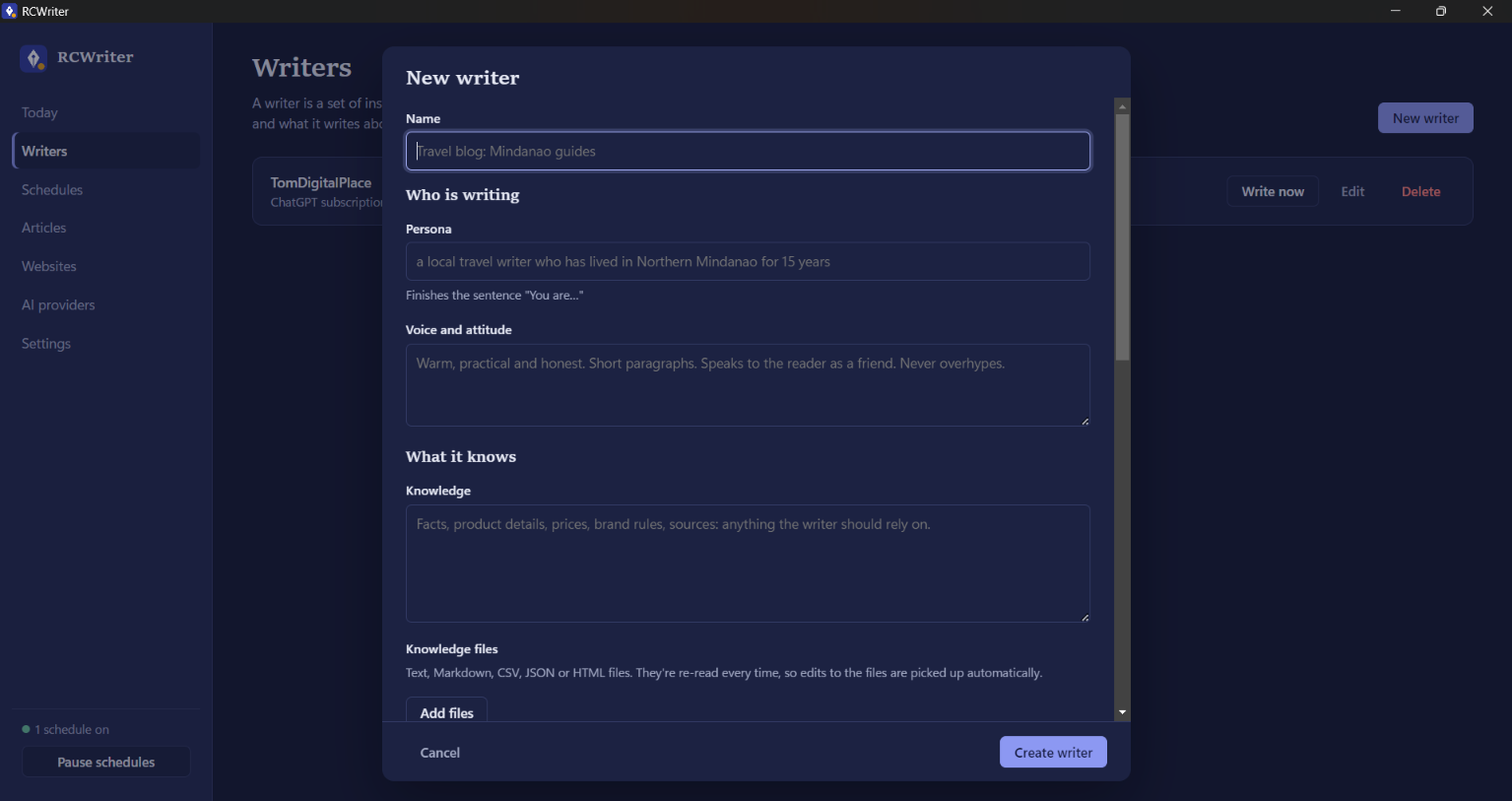
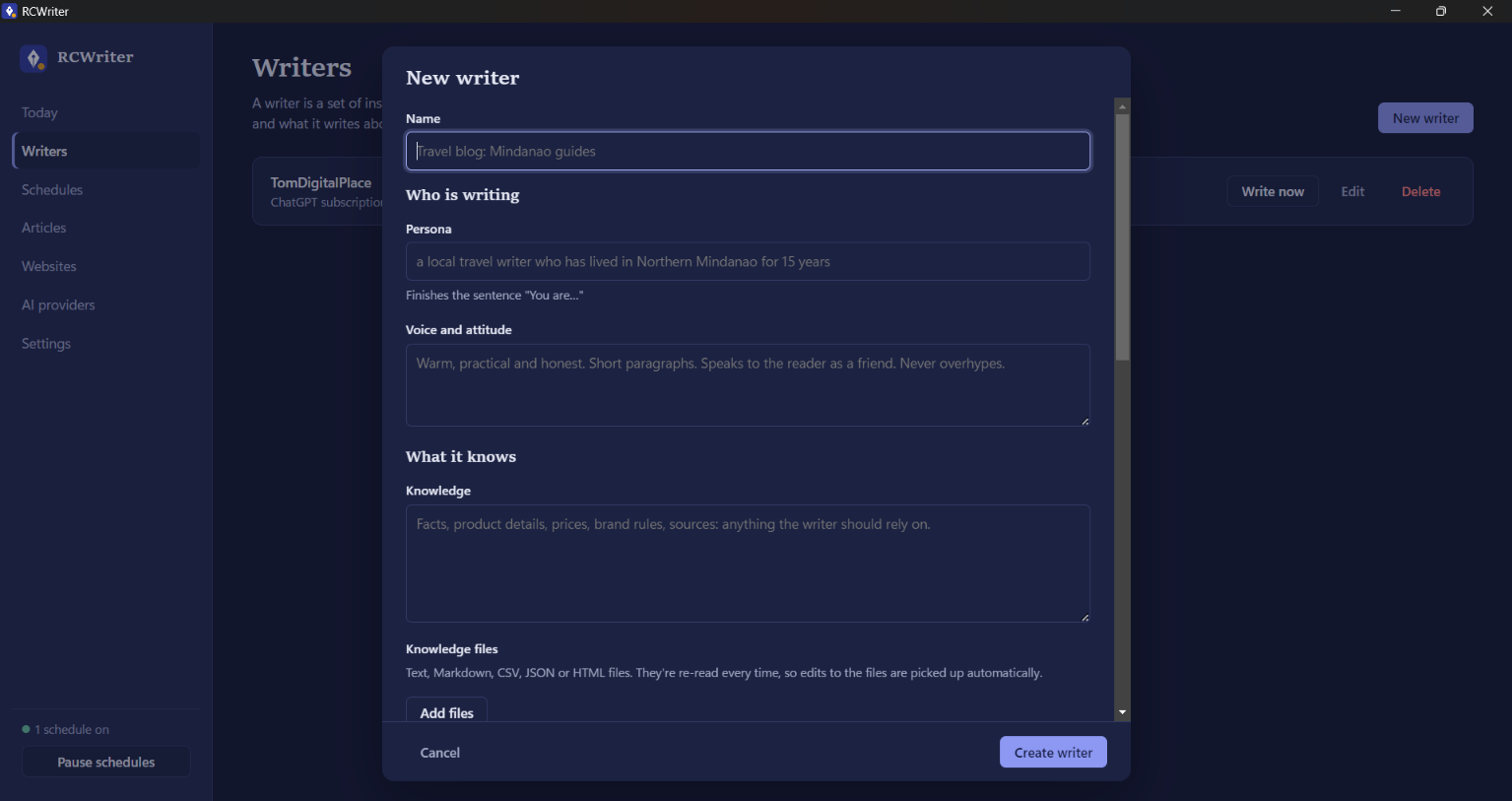
For each writer, you can configure:
- Persona: Define the perspective and expertise the AI should use when writing.
- Voice and attitude: Choose a warm, formal, practical, playful, or detailed style that fits the audience.
- Knowledge: Supply product information, brand guidelines, reference material, and other facts the writer should use.
- Standing instructions: Set recurring requirements such as H2 headings, an FAQ section, short paragraphs, or a closing call to action.
- Topics: Provide a list of subjects, choose how they are selected, or let the AI develop topics from your instructions and knowledge.
- Language and length: Set the language and approximate word count.
- SEO meta descriptions: Include a meta description with each article when enabled.
RCWriter also remembers previously published content to help avoid repeated titles and angles.
You can type knowledge directly into the app or attach TXT, Markdown, CSV, JSON, and HTML files. Attached files are read again for each writing run, so updating your reference material updates what the writer uses.
Set a schedule that fits your content plan
A useful content plan needs a publishing rhythm you can sustain.
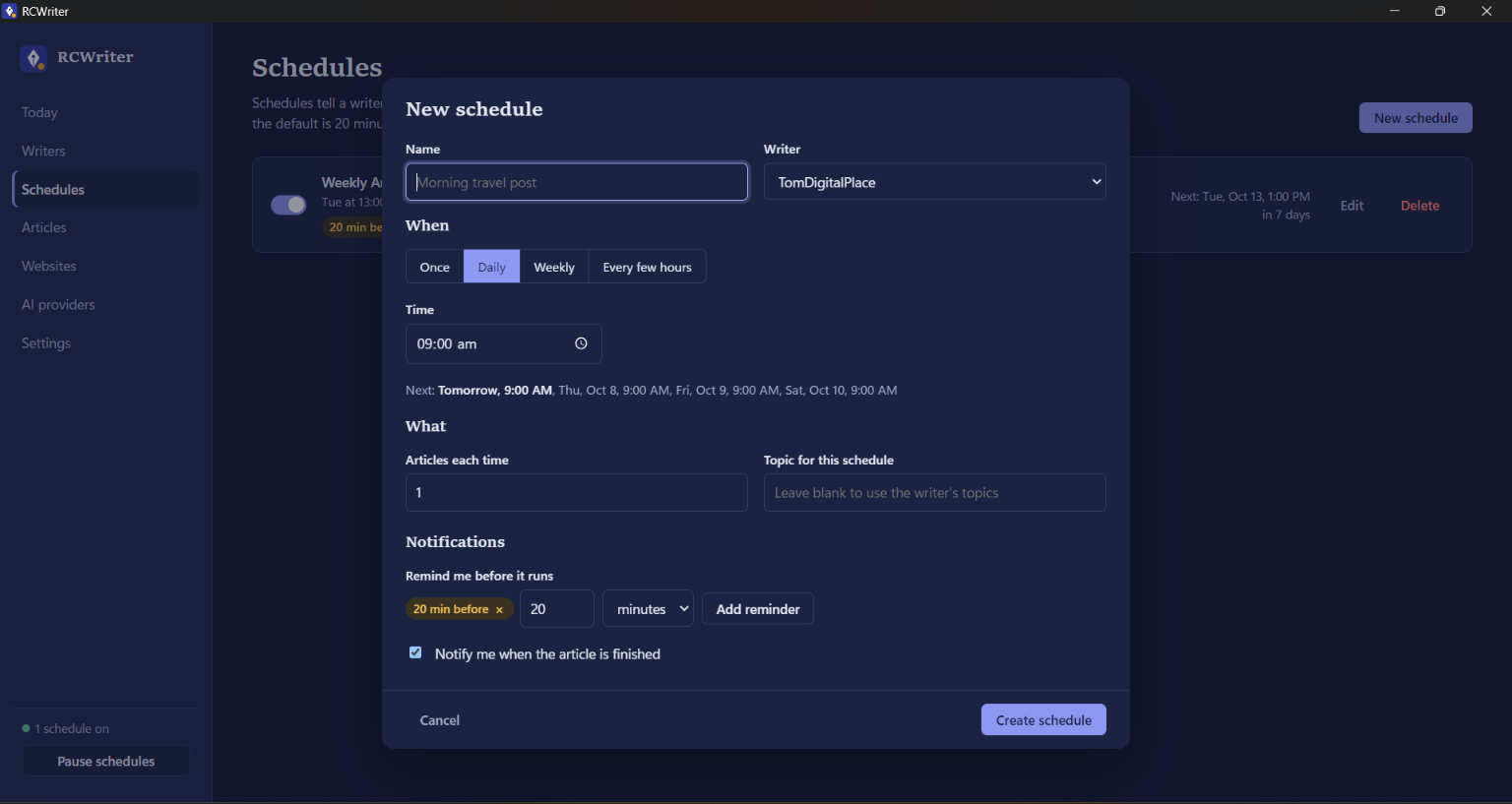
RCWriter lets you schedule writing for:
- A specific date and time.
- The same time every day.
- Selected days each week.
- Recurring intervals, such as every six hours.
Each scheduled run can produce between one and ten articles. You can also give a schedule its own topic instead of using the writer’s usual topic list.
Turn individual schedules on or off as your priorities change, or pause all schedules together when you need to stop automated writing.
This makes RCWriter useful for a single business website as well as several client websites with different content requirements.
Know what is happening without watching the app
RCWriter uses desktop notifications to keep you informed throughout the writing process.
Get a reminder before a scheduled article begins, a notification when it is finished, and an explanation if something needs your attention.
The default advance reminder is 20 minutes, and you can configure additional reminders in minutes, hours, or days before a scheduled run. Clicking a completion notification opens the article so you can read it.
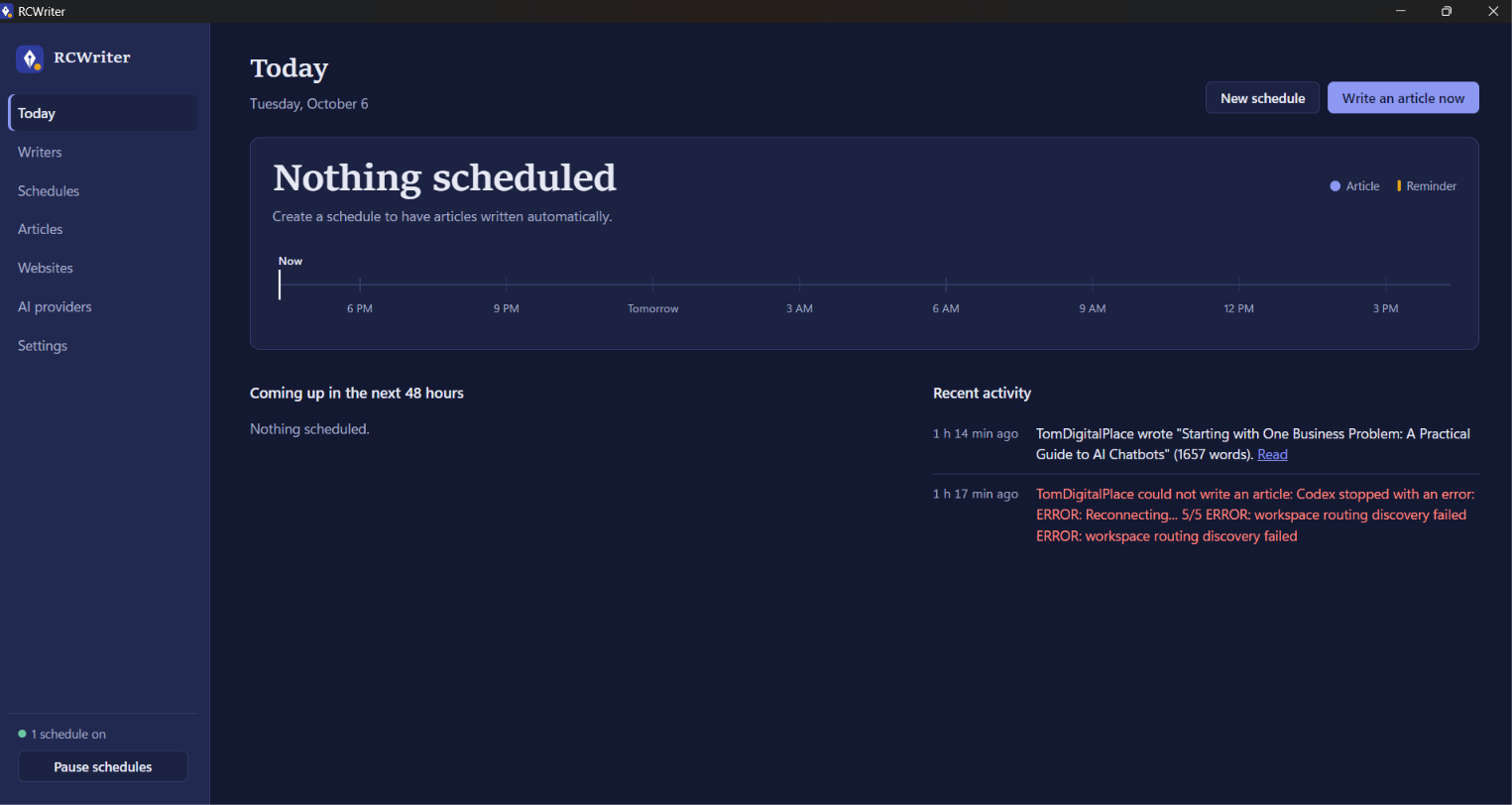
The Today screen brings your upcoming work together with:
- A 24-hour timeline of scheduled articles and reminders.
- Upcoming activity for the next 48 hours.
- Recent writing and publishing activity.
You can check what is coming next without opening every writer or schedule.
Choose your AI provider and model
RCWriter lets you use your own AI accounts and credentials rather than tying every writer to one provider.
Its connection options include:
- ChatGPT sign-in through its Codex integration.
- OpenAI API keys.
- Claude API keys.
- Gemini API keys.
- OpenAI-compatible services, including supported hosted services and local models.
Each writer can use a different provider and model. This lets you choose a setup that fits the content, budget, and requirements of each website.
For supported API connections, RCWriter retrieves available models from the provider.
AI usage remains associated with your own provider account. API charges and subscription usage limits are separate from the RCWriter download.
Connect your website and choose how content is published
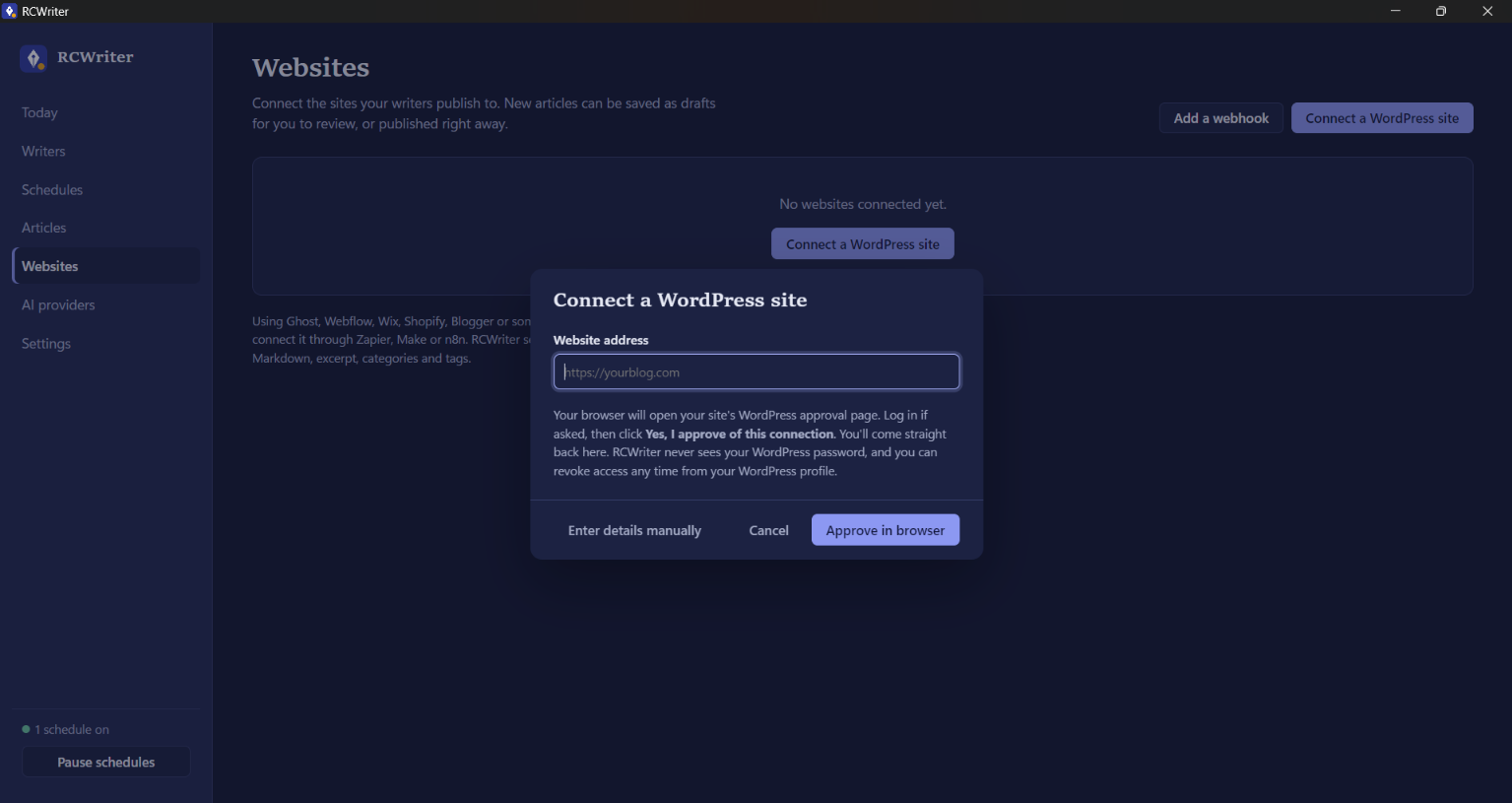
RCWriter can connect directly to WordPress or send finished content to a webhook.
For WordPress, you approve the connection through your own website’s login page. Access can be revoked from your WordPress profile. The connection requires WordPress 5.6 or newer with HTTPS.
Webhook connections let you build publishing workflows for other platforms through tools such as Zapier, Make, or n8n. RCWriter can send article information including the title, HTML, Markdown, excerpt, categories, and tags. The receiving integration determines how that content is handled.
For each writer, choose whether new WordPress articles should be:
- Saved as drafts.
- Submitted for review.
- Published immediately.
- Published privately.
You can also configure categories and tags, publish individual articles manually, and open published articles on the website or in the WordPress editor.
Prefer to review everything first? Save articles as drafts and publish them after checking their accuracy, usefulness, and tone.
Keep a local copy of your articles
Your articles are not limited to a publishing connection.
RCWriter saves each article as a Markdown file in Documents\RCWriter, organised into folders for individual writers.
Inside the app, you can:
- Read articles in a clean reading view.
- Search by title or writer.
- Copy article text.
- Open the saved file or its folder.
- See where an article was published.
- Identify articles that were cut short by a generation limit.
This gives you a local content library you can review, reuse, and back up.
Keep your workflow running in the background
RCWriter is designed to stay available without keeping its main window open.
Closing the window keeps the app running in the Windows system tray. Use the tray’s Quit command when you want to stop it completely.
You can configure it to start when you sign in to Windows. Tray shortcuts let you start writing immediately, pause schedules, or lock the app.
If your computer is asleep or switched off when an article is due, RCWriter can catch up after it wakes, within the time window you configure.
Your computer must be on and connected to the internet for scheduled online writing and publishing to run.
Protect access to the app
RCWriter includes an optional app password and configurable automatic locking.
You can lock it when the window closes or minimises, when Windows locks or sleeps, or after a chosen period of inactivity. Scheduled work continues while the app is locked.
Saved API keys and website credentials use Windows credential protection. Repeated incorrect password attempts trigger a temporary unlocking delay.
If you reset a forgotten app password, RCWriter clears saved provider and website credentials to protect those connections. Your writers, schedules, and saved articles are retained.
Get started with a simple setup
- Download and install RCWriter using the Windows installer.
- Connect an AI provider through a supported sign-in option or API key.
- Connect your website if you want publishing integration.
- Create your first writer with its voice, knowledge, topics, and content instructions.
- Add a schedule and choose your reminder and publishing settings.
No programming tools or command-line setup are required for the standard installation.
A practical tool for a more consistent business
At TomDigitalSpace, we focus on tools that help businesses reduce repetitive work and make better use of their time.
RCWriter supports that goal by bringing content instructions, scheduled writing, publishing connections, and a local article library into one desktop application.
Whether you manage your own business website or create content for several clients, RCWriter helps you establish a repeatable workflow while keeping control over what gets published.
System requirements: Windows 10 or Windows 11, 64-bit, with an internet connection.
Currently free to download. No TomDigitalSpace account is required. Enter your name and email and subscribe to updates to access the download.
Get RCWriter Free